How to record your live class and share it with students who missed it
Record a class on your own computer or phone, keep the file, put it on YouTube or Google Drive, and add the link. Students who missed the class are told. Nothing is stored on the site.

17 October 2026 · 5 min read · All posts by StemPy Lab
A student is ill on the day of your class. Another one has no internet at that hour. If the class was recorded, both can catch up in their own time.
On StemPy Lab you record on your own device. The video is not stored on the site, so there is nothing to pay for and no limit on the length. You keep the file, you put it on YouTube or Google Drive, and you add the link to the class.
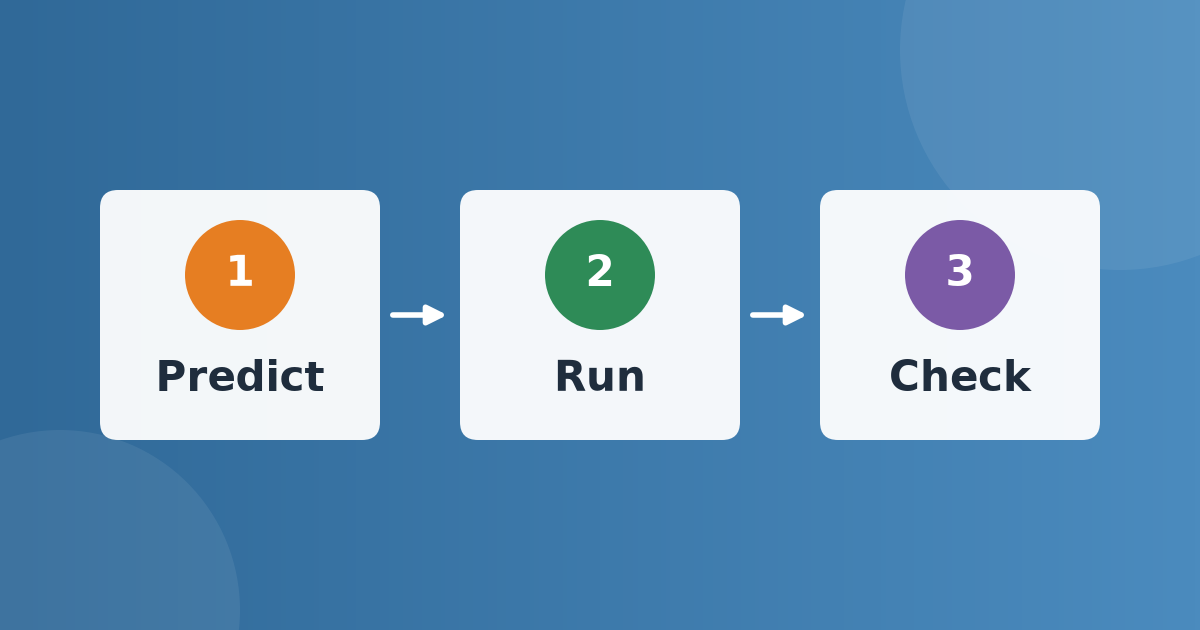
1. Record
On a laptop or desktop
This is the easiest way, and it needs no extra program.
- Start the live session and join it, as always.
- Tick I will record this class before you start, or tick Tell the students that this class is being recorded while it is live. Your students then see a red notice before they join. The notice is also turned on for you when you start recording.
- Under the video you see Record this class on this computer.
- In Chrome or Edge, press 1. Choose where to save, choose a folder and a name, then press 2. Start recording. The video is written to your disk while you teach, so even a long class is safe.
- In Firefox or Safari, press Start recording. The video is kept in the memory of your computer and is saved when you press Stop and save.
- The browser asks what to share. Choose This tab, tick Also share tab audio, and allow the microphone. If you forget the tab audio, you will be told that the voices of your students are missing. Stop and start again.
- At the end, press Stop and save. You can also press Stop sharing in the bar of the browser.
Tips:
- Use headphones. Without them, your microphone picks up your students a second time, and the recording echoes.
- One hour of class is about half a gigabyte. Keep a few gigabytes free.
- Do not close the tab while recording. If you try, the browser asks you first.
On a phone or a tablet
A web page cannot record the screen of a phone or tablet, so use the recorder that the device already has. The menus differ a little between makes, so look for the screen recording button.
| Device | How |
|---|---|
| Android phone or tablet | Swipe down for the quick settings and find Screen recorder. Choose to record sound from the microphone. |
| iPhone or iPad | Open the Control Center and press the round Screen Recording button. Press and hold it to turn the microphone on. |
| Windows | Press the Windows key, Alt and R together (the Xbox Game Bar), or use the Snipping Tool and choose the video camera. |
| Mac | Press Shift, Command and 5, choose Record Entire Screen, and in Options choose your microphone. |
| Linux | Install OBS Studio, which is free. Add the screen and your microphone, and press Start Recording. |
If you use the recorder of the device, tick Tell the students that this class is being recorded in the class yourself.
2. Upload
Put the video where students can watch it on any device. We recommend YouTube, because it is free, takes long videos and plays well on every phone.
- YouTube: open YouTube Studio, press Create and Upload videos, choose the file, and set Visibility to Unlisted. An unlisted video does not show up in search. Only people who have the link can watch it. For videos longer than 15 minutes, YouTube may ask you to verify your phone number first.
- Google Drive: upload the file, press Share, and set General access to Anyone with the link. Choose Viewer.
- Vimeo also works. Its free plan has a weekly limit on uploads.
Upload on a good connection, because an hour of video is a large file. You can leave the upload running and come back.
3. Add the recording
When you end the session, a box appears: Add the recording of this class. You can also open Session History, press the session, and press Add the recording later.
- Check the title. It starts as "Live class" and the date.
- Paste the link of the video.
- Press Add.
That is all. The recording is added to the Lectures of the class, with the date of the live class. The students who were not in the session get a notification that the recording is ready. The students who were there are not disturbed.
What students see
On the class page, in Lectures, the recording is marked as Recording of the live class with the date. For a student who missed the class, it is highlighted: You missed this class: watch the recording. The video plays inside the page.
Privacy and kindness
- A recording can show the faces and voices of students. Tell them before you start. The site shows a red notice to everyone who joins, and you should say it aloud, too.
- For learners under 18, make sure that their guardians know that the classes are recorded.
- An unlisted link can be passed on by anyone who has it. Ask your students to keep it inside the class. If you need more privacy, use Google Drive and share the video only with the email addresses of your students.
- If you want to remove a recording, delete the lecture in the class, and delete the video in your own YouTube or Drive account.
If something goes wrong
- No voices of students in the recording. You did not tick Also share tab audio. Stop, start again, and tick it.
- No voice of the teacher. The microphone was not allowed. Allow it in the browser and start again.
- The browser did not show a tab to choose. Chrome and Edge show it. In Firefox and Safari you choose the tab or the window from the list.
- The file is very large. Record in parts, with a stop and start between the parts, or use the recorder of the device at a lower quality.
If you have a question about recording, please write to us on the Contact page.
Discussion (0)
Log in to join the discussion.
Loading…
How to hold a mock test: a step-by-step guide for teachers
Get your questions ready, build a paper marked like the real exam, choose how it starts, run it, read the report and give certificates. Then take the same paper to students beyond your class with an open exam. A walk through a demo class test.
Mock testsTeachersGuides