Your first Python program, in your browser
You do not need to install anything. Press Run, give the program an input, draw a graph, and learn what the code boxes can and cannot do. A ten minute start.

21 October 2026 · 3 min read · All posts by StemPy Lab
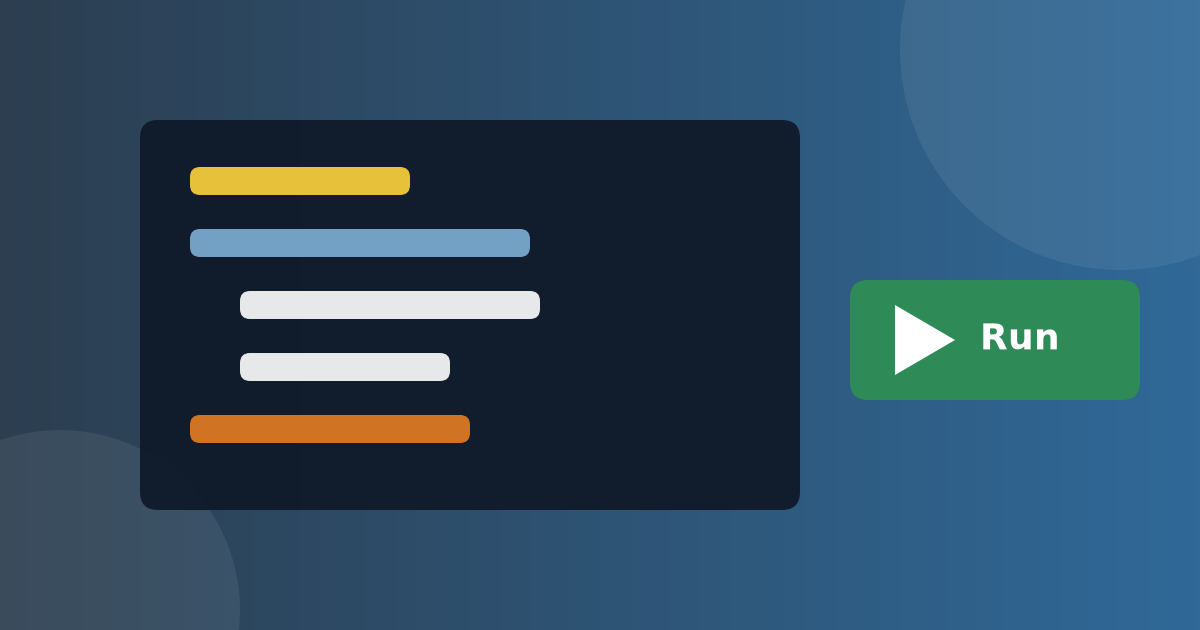
People think that programming needs a special computer, a long install and a lot of patience. It does not. On StemPy Lab, Python runs inside the page, in a safe space in your browser.
Press Run
The box below is a real Python program. Press the Run button.
The words under the box are the output: what the program wrote. You just ran a program.
Change something
The box is not locked. Click inside it, change StemPy Lab to your own name, and press Run again. Now the program talks to you.
Let the computer calculate
Computers are very good at arithmetic that is boring for us.
Read it like a sentence. The first three lines give names to numbers. The next line multiplies them. The last line prints the answer. Change mass to and predict the new energy before you press Run.
Programs that ask a question: the + Input button
Some programs stop and ask the user something with input(). In a browser box there is no keyboard prompt, so you give the answers before you press Run.
Look under the box for a small button called + Input. Press it, and a text area opens. Type one answer on each line, in the order that the program asks.
Press + Input and type these two lines:
Asha
14
Then press Run. The first input() takes Asha. The second takes 14. If you give fewer lines than the program asks for, Python stops with an EOFError, which only means "I ran out of answers". Add a line and run again.
The box also tells you, under the text area, how many answers your code expects. And when your code calls input(), the button turns amber to remind you.
Draw a graph
Python can draw pictures of data. This program draws the path of a ball thrown at degrees. It uses two helpers, numpy for lists of numbers and matplotlib for the drawing.
Press Run. The first time may take a few seconds, because the drawing tools are loaded when they are needed. The graph appears under the box. Tap it to see it large, and tap Close to come back.
Now change 45 to 60, then to 30, and run again. Which angle sends the ball the farthest?
What else can Python do here?
- Numbers and text: calculate, join words, count letters, clean text.
- Lists and dictionaries: keep many values, count things, look things up.
- Functions: give a name to a recipe and use it again.
- Random numbers: simulate coins, dice and games.
- The
mathandstatisticsmodules: square roots, means, medians. - Graphs:
matplotlibdraws line graphs, bar charts and histograms.numpyandscipyare there for more serious work.
What it cannot do: the box lives in a safe sandbox, so it cannot open files on your computer, and it is not meant for very long computations.
Keeping your work
- Changes you make in a lesson box are not stored. If you leave the page, the box goes back to the lesson's version. Use the Copy button to take your code with you, and the Reset button to go back to the original.
- In a Python Lab, press Save to My Runs (you need to be logged in). It keeps your code and its output, and you can open it later under My Saved Runs.
- If you want to run Python on your own computer, the chapter Python on Your Own Computer in Python Foundations shows how, for Windows, macOS and Linux.
What is next
- The course Python Foundations starts from the very first line, with a lot of small exercises.
- If you know a little already, take the Level Check first and skip what you know.
- Physics, chemistry and statistics lessons also use these code boxes, so everything you learn here works there too.
You have run your first program. The second one is easier.
Discussion (0)
Log in to join the discussion.
Loading…
Welcome to StemPy Lab
A place to learn physics, chemistry, mathematics, biology, Python and statistics by trying things. Here is how it works, who it is for, and what to do first.
GuidesGetting started
StemPy Lab · 18 October 2026 · 2 min read