How to hold a mock test: a step-by-step guide for teachers
Get your questions ready, build a paper marked like the real exam, choose how it starts, run it, read the report and give certificates. Then take the same paper to students beyond your class with an open exam. A walk through a demo class test.

22 October 2026 · 8 min read · All posts by StemPy Lab
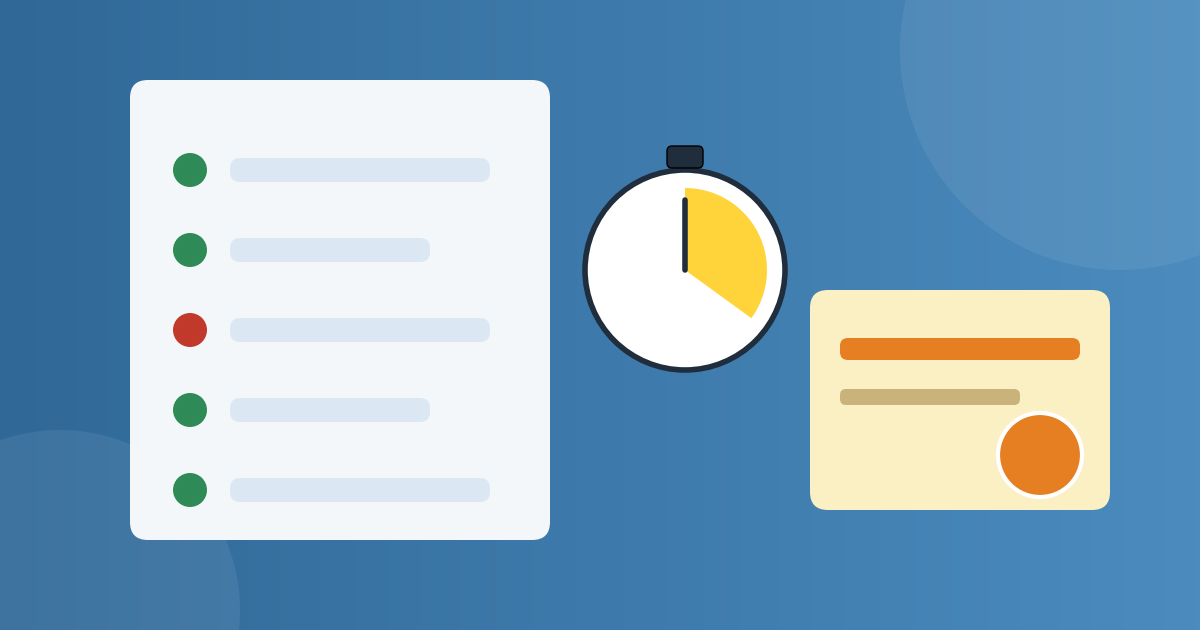
A mock test is the closest your students get to the real exam before the real exam. It shows them where they stand. It shows you what to teach again.
On StemPy Lab you can hold one for your class in a few minutes, and run it as strictly as a board or entrance exam. This guide walks through it from start to end.
To make it clear, we follow a demo teacher. Ms Rao teaches Class 10 Physics to 20 students, in a morning and an evening batch. Ms Rao, her students and all the numbers in this guide are made up.
You need a class with students in it. If you do not have one yet, read the guide to running a class first.
1. Get your questions ready
Every test is made of questions, and on StemPy Lab questions live in question vaults. A vault is your own private collection, for example one per chapter. Open Teacher Studio, then Question Vaults.
There are three ways to fill a vault.
- Write them. Type the question, the options and the explanation. A question can have one correct option, several correct options, or a number to type.
- Import them. Bulk Import loads a whole file of questions at once, and you check each one before it is saved.
- Make them with AI. If your account has AI access, Write with AI drafts questions on your topic. You check them, as you would check a new colleague's work.
Ms Rao keeps a vault called Force and Laws of Motion, with 60 questions in it.
A question you write for a test starts locked. Your students see it only inside the test, never on its own page, so nobody can practise it or find its answer beforehand.
Ms Rao keeps her class test private, so its questions never reach the public bank. She can use them again next year.
2. Build the test
Open Teacher Studio, then Mock Tests, and start a new test.
- Name it and choose the subject, the level and the exam. Choosing an exam fills in its usual marking.
- Set the time and the marking. Ms Rao gives 60 minutes, +4 for a right answer and −1 for a wrong one, as in JEE Main. A blank answer always scores 0.
- Add sections, if you want them. A Physics, Chemistry and Maths paper can give each section its own clock, as some online exams do.
- Fill it from your vaults. Say how many questions you want, and the builder shows how many places are left. Ms Rao picks 25.
- Write the instructions. Anything your students should read before they begin. You can also shuffle the options, so the students beside each other see them in a different order.
- Keep it private and publish it. A private test is only for your classes.
3. Give it to your class
On the test's page, press Assign. Pick the class, or one batch. Add a due date and a short note if you like. Then choose how the test starts. This is the most important choice, so here are all four side by side.
- I'll start it. Students open the test and wait, with the instructions on screen, until you press Start now. Choose this when you are with the class, in a room or a live session.
- At a set time. It starts by itself at the time you set. The instructions show from 5 minutes before. Choose this when you may not be there.
- Within a window. Say from 9:00 to 12:00. Each student gets the full time from the moment they begin. Choose this when your students have different timetables.
- Any time. For practice. There is no start or end.
In the first two, everyone's time ends together. Late joiners can still come in for the minutes you allow (10 by default), with less time left.
You also choose how many attempts each student gets, and when they see their results: as soon as they submit, once the test ends, or when you press Release results now.
Ms Rao chooses I'll start it for her morning batch, which meets in the lab, and within a window for the evening batch, who study at home.
Tip. Hold the results until the test ends. Then a student who finishes early cannot pass the answers on.
Until a class test starts, your students see that a test is coming and when, but not its name or its questions. Nobody can look it up early.
4. On the day
Open your class page and find the test under Assigned Work.
- When the batch is ready, press Start now. Every student's clock starts together.
- If something goes wrong, such as a power cut in one room, give more time to write (5 to 60 minutes). The students already writing see their clock change.
- If a student is very late, give more time to start.
- When you are done, the test ends by itself. You can also press End now.
Every answer is saved the moment a student gives it. When anyone's time is over, the answers they saved are submitted for them, even if they closed the page or their connection dropped.
5. Leaving the exam screen
During a timed test, every time a student leaves the test window (another tab, another app, a call) it is counted and timed. You decide what happens when someone leaves too often.
A held attempt gets no place and no certificate until you look at it. You can clear it (a power cut is not cheating) or disqualify it. A student can appeal once, with a reason, and you accept it or turn it down. You set the limit and the days allowed for an appeal on the class test's page, under Leaving the exam screen and appeals.
6. Results and the report
Once the results are out, each student sees their marks, every right answer with its explanation, and their rank in the class or batch. You see the full report.
The report is the most useful page for a teacher. Look at Q3. Twelve of 20 students got it wrong, and 11 of them chose the same wrong option: they added two forces at right angles as if they pointed the same way. That is not a careless slip. That is one idea to teach again, to the whole class, tomorrow.
If you find that the answer key itself was wrong, correct the question. Every attempt with it is marked again, and the ranks follow.
The page also has a candidate list to download, with each student's marks, place, time and screen leaves.
7. Certificates
On the class test's page, tick Give certificates for this test. You can do it before the test, after it, or once the results are out.
- Everyone who took it gets a Certificate of Participation.
- The top tenth (at least the top 3) get a Certificate of Merit.
- Each shows the marks and the place, in your name or your organisation's.
Issue certificates to everyone now gives everyone theirs at once. Every certificate has a number and a QR code, so a parent or a school can check it is real.
If results change later (you clear a held attempt, or correct an answer), the certificates that changed are issued again, and the students are told.
8. Going further: an open exam
A class test is for your own students. An open exam is listed on the Mock Tests page for anyone to register, with a date and a time. A coaching centre or a school can hold one in its own name.
- Set up your organisation under Exam Events in the Teacher Studio: its name and logo. An admin approves it once.
- Choose a private, timed paper, and fill in the exam: date and time, late joining, places, when results show, the screen-leaving limit, appeals, objections to the answer key, and certificates.
- Send it for approval. An admin checks it, and then it is listed.
- Take registrations. Free, or only with an access code from you. You can charge a fee: candidates pay you directly by UPI, a payment link or bank transfer, and you confirm their payments.
- Run it and publish the results, with ranks, objections, appeals and certificates in your organisation's name.
Holding tests and exams on StemPy Lab is free while we launch.
A checklist for your first test
- A vault with at least the questions you need, each with an explanation.
- A private test with the right time, marking and instructions.
- Assigned to the right class or batch, with the start you chose.
- Results held until the test ends.
- Certificates turned on, if you want them.
- The report read the next day, and one idea taught again.
For every button and option, the Help centre has a guide on class tests and one on open exams.
Help: holding a test for your class →
If you are stuck, write to us on the Contact page.
Discussion (0)
Log in to join the discussion.
Loading…
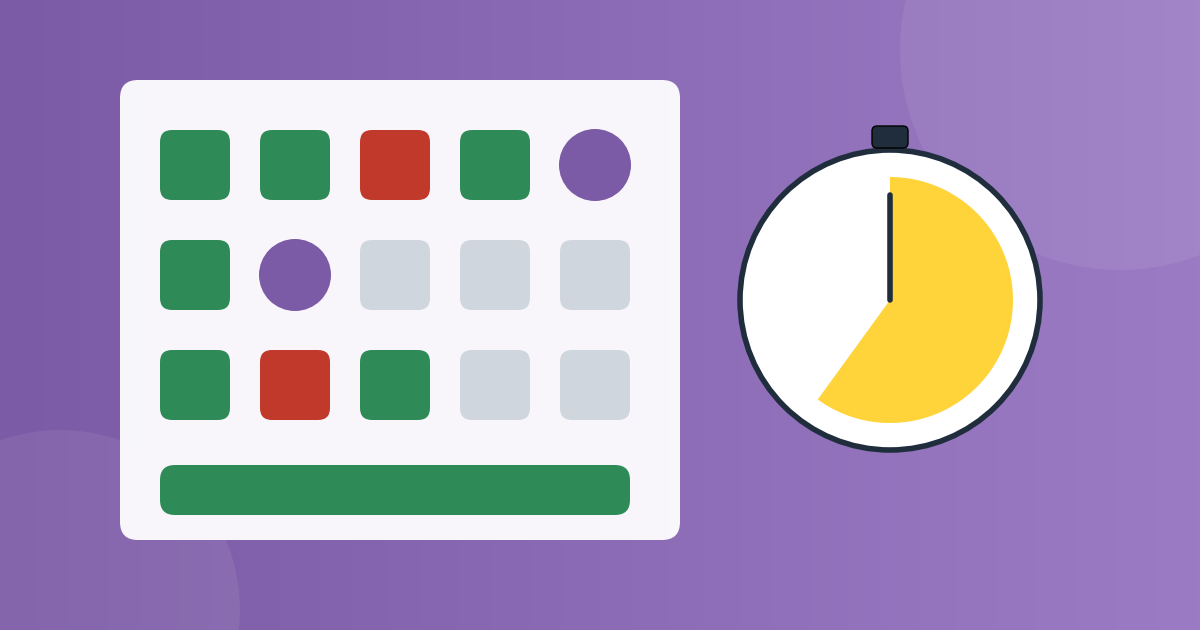
How to take a mock test: a step-by-step guide for students
Find the right paper, read the instructions, use the exam screen like the real JEE or NEET, understand the marking, and turn every wrong answer into marks. Then sit open exams and the Live Series with students everywhere.
Mock testsExamsGuides