How to run a class: a guide for teachers
Open a class, bring students in, use batches, teach live, assign work, read the students table, assess, promote and issue certificates. A walk through a demo class with demo students.

17 October 2026 · 7 min read · All posts by StemPy Lab
A class on StemPy Lab is a place where one teacher, and a group of students, work together. It has several parts, because a real class has several parts: you talk, you set work, you watch progress, and at the end you say who has finished.
This guide goes through everything from the teacher's side. We use a demo class. Ms Rao teaches Class 10 Physics to two groups. Asha and Ravi are in the Morning batch. Meera and Kabir are in the Evening batch. All these names are made up.
Before you start
You need a teacher account. Open your Profile and apply to become a teacher. An admin approves it. After that you can open classes.
1. Create a class
Choose a name, a short description, the subject and the level. There is also a switch, Open to join requests. When it is on, students can find your class in the public directory at Classes and ask to join. When it is off, only students with your join code can enter.
The subject only describes what the class is mainly about. It does not limit what you can assign.
2. Bring students in
- The join code. Every class has a code, which you see at the top of your class page. Give it to your students. When they type it on their dashboard, they are in at once.
- Join requests. If the class is open to requests, you see them under Pending Join Requests. You approve or decline each one.
You can remove a student from the class later if you need to.
3. Batches
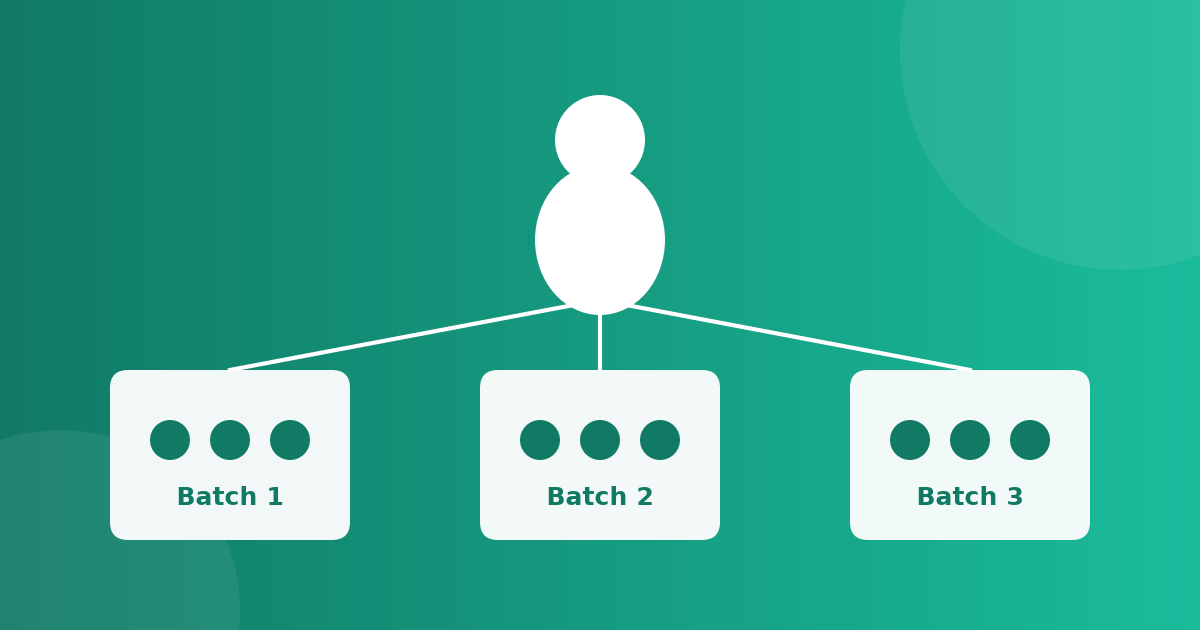
A class can run in batches: for example a morning group and an evening group, or each year's intake. A batch is a smaller group inside the class.
Live sessions, lectures, courses, announcements and assignments can go to the whole class or to one batch. When a class has more than one batch, the page gets a tab for each batch, so you always know who you are talking to. Things that belong to the whole class stay in the Overview tab.
You can also close a batch and start a new one.
4. Your class page
The Overview tab has:
- Collaborators: other teachers who help you run the class.
- Pending join requests.
- Batches.
- Class performance: a chart of test scores and the share of assignments completed.
- Student ratings: what students think of the class.
Each batch tab has:
- Live session. Start a video session for the batch. Students see a Join button while you are live. End it when you finish. Everything runs in the page. If you want to record, tick I will record this class before you start. Students then see a red notice. On a laptop the page has a Record this class on this computer button, and the video is saved on your own computer, not on the site.
- Lectures. Schedule a lecture with a title, a short description and a date and time. Choose its kind: a live video call, written notes, a recorded video (paste a YouTube, Vimeo or Google Drive link) or a reading. You can cancel or delete it later.
- Assigned courses. Give the batch a course. You can assign your own course, or a course by another teacher if it is published, public and free. The students are enrolled in it, and the course's author is told.
- Announcements. Post, edit or delete short messages.
- Assign work. Described in section 6.
- Assigned work. What you have set, with the due dates.
- Session history. Every live session, who joined, when they joined and when they left, and the total minutes. Open a session and press Add the recording to attach the link of its video. Students who were not in that session are told that the recording is ready.
- Students. The table of students.
If your class has only one batch, you see all these parts on one page, without tabs.
5. Live sessions
A live session is a video call inside the class page. You need a browser, a microphone and, if you wish, a camera.
- Open the class page. If the class has batches, open the tab of the batch that you will teach.
- In the Live session panel, choose who the session is for: one batch, or the whole class. Tick I will record this class if you plan to record it. Then press Start Live Session.
- The browser asks if it may use your microphone and camera. Press Allow. The students of the class are told that you are live, and they see a Join Live Session button.
- Teach. Ask the students to keep their microphones off when they are not speaking.
- Press End Session when you finish. The call ends for everyone.
Afterwards, the Session history shows who joined, when they joined and left, and the total minutes. If you recorded the class, open the session there and press Add the recording.
Start a few minutes early, so that the first students are not waiting. If you record, use headphones, so that your microphone does not pick up your students a second time.
6. Assigning work
Open Assign work and choose what to give. You can assign a problem, a Python lab, a quiz, a mock test, a question set, a resource, a note or a blog post. You can also press Assign on any of these items when you browse the site.
For each assignment you can set a due date and write a note for the students, with instructions. You can change the note later from the class page. The same item can be assigned to the same class or batch only once.
What counts as done depends on the type of work.
A test or question set counts only if the student submitted it after you assigned it. Reading (notes, resources, blog posts) cannot be tracked, so it has no done status.
7. Watching progress
The Students table has one row for each student. You can sort it, search it and filter it by batch.
For each student you see problems solved, concepts understood, assignments completed and overdue, test average and when the student was last active. A student who is falling behind shows up quickly. In the demo, Kabir has done one of three assignments and has not been active for nine days. Ms Rao can write to him, or give him extra time.
Click a student to open the student record:
- course progress,
- recent activity,
- test and question-set scores,
- assessments you wrote,
- promotion and certificate.
8. Assessing a student
Press Assess next to a student. You can write an optional grade, such as A, 8 out of 10 or Excellent, and some feedback. Only you and that student can see it. Use it for the things that numbers do not show: effort, clear steps, a good question in class.
9. Promoting and certificates
When a student has finished the class, open the student record and press Promote: Mark Class Completed. You can undo it. Promotion is the step that unlocks a certificate.
After promotion:
- the student sees Apply for Certificate, and you see the request. You can Issue it or Decline it. If you decline, the student may apply again;
- you can also issue a certificate directly, with no request;
- the student's Report Card shows a summary of the work and the certificate. Both of you can print it.
The site does not mark anybody absent or give a certificate automatically. Attendance and progress are there to help you decide.
10. Teaching with another teacher
The owner of a class can add collaborators. A collaborator is another teacher who helps teach, so you can share a class with a colleague.
A weekly routine
- Post an announcement about the week.
- Teach a live session for each batch. If you record it, add the link of the video under Add the recording when the session ends.
- Assign a few items with a due date and a clear note.
- Look at the Students table. Who is behind?
- Assess a few students with a short, honest note.
- At the end, promote and issue certificates.
Small tips
- Give a note with every assignment. "Do problems 1 to 3, then the lab" is a lot clearer than a title alone.
- Use batches only when you really teach two groups. One batch is simpler.
- Keep the join code private if you do not want strangers to enter. Turn off Open to join requests if you only want your own students.
- Tell students early that their rank is private, and that your assessments are for them alone.
- Say aloud, and tick the notice, when you record a class. Students have a right to know.
If you have any problem or an idea to make classes easier, please write to us on the Contact page.
Discussion (0)
Log in to join the discussion.
Loading…
How to hold a mock test: a step-by-step guide for teachers
Get your questions ready, build a paper marked like the real exam, choose how it starts, run it, read the report and give certificates. Then take the same paper to students beyond your class with an open exam. A walk through a demo class test.
Mock testsTeachersGuides