How a class works: a guide for students
Join a class, see what your teacher sets, understand what counts as done, what your teacher can see, and how a certificate is earned. A walk through a demo class with a demo student.

17 October 2026 · 6 min read · All posts by StemPy Lab
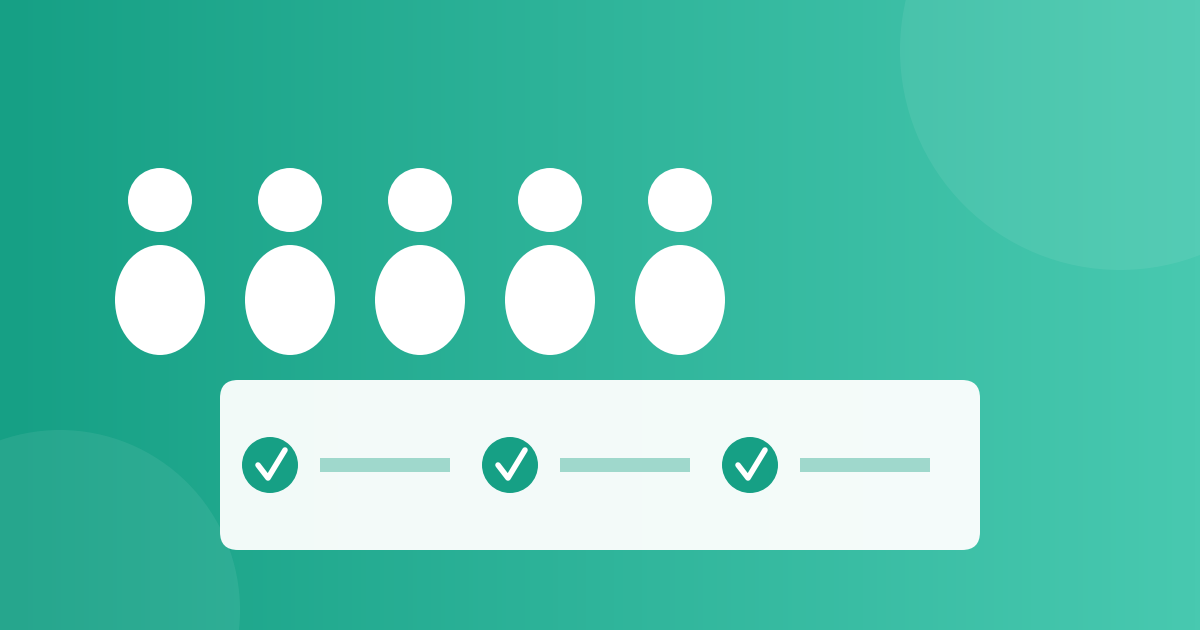
A class on StemPy Lab is led by a teacher. It is different from a course, which you can take alone, and from a study group, which friends start without a teacher.
In a class, your teacher can talk to you live, give you work, see how you are doing and, at the end, give you a certificate. This guide shows you every part, from the student's side.
To make it clear, we use a demo class. Ms Rao teaches Class 10 Physics. Asha is one of her students. Ms Rao, Asha and the other names in this guide are made up.
1. Joining a class
There are two ways.
- With a join code. Your teacher gives you a short code, such as
K7M2QX. Open your Dashboard, find the box for a join code, type it and press Join. You are in at once. - From the directory. Open Classes in the menu. Choose a subject and a level, find a class and press Request to join. The button shows Requested until your teacher says yes or no.
You need an account for both. Joining is free.
2. Your class page
When you open a class, you see one page with several parts. Here is Asha's page in the demo class.
Let us go through the parts.
- Announcements. Short messages from your teacher: a test date, a change of time, a reminder.
- Live session. When your teacher starts a live video session, a Join button appears. You join in the page, with no extra program. When the teacher ends the session, the button goes away. If the class is being recorded, you see a red notice before you join. Your face and voice can then be in the recording.
- Lectures. The lectures that your teacher scheduled, with the date and time: a live video call, written notes, a recorded video (a YouTube, Vimeo or Google Drive link) or a reading. Open them whenever you like. If your teacher records a live class, the recording appears here too, marked with the date of the class. If you were not in that class, it is highlighted: You missed this class: watch the recording, and you also get a notification.
- Assigned courses. Courses that your teacher chose for the class. They are ordinary courses, so your progress in them counts as usual.
- My Assignments. The work that the teacher set for you, with due dates and a note from the teacher. More about this below.
- My Assessments. A grade and some feedback from your teacher, written only for you.
- My Rank. How you compare with your class or batch on the tests that the teacher assigned.
- Feedback for your teacher. You can rate the class and leave a comment, under your name or without it.
- Certificate. Appears when your teacher marks the class completed.
3. Live sessions
Your teacher may teach some lessons live, in a video call inside the page. You need a browser and a microphone. A camera is your choice.
- Open the class page a few minutes early. When your teacher starts a session, the Live session panel shows a Join Live Session button. If your class has batches, you see the sessions of your batch and the sessions for the whole class.
- Press Join Live Session. The browser asks if it may use your microphone and camera. Press Allow.
- Use the buttons of the call to switch your microphone and camera on or off. Keep your microphone off when you are not speaking, so that the class is not disturbed.
- When your teacher presses End Session, the call ends for everyone and the button goes away.
The site notes when you joined and when you left, in minutes. Your teacher sees this in the session history, and it helps the teacher to know who came.
Some teachers record a class. If so, a red notice tells you before you join, and your face and voice can be in the recording. If you miss a recorded class, you get a notification when the recording is ready. You find it in Lectures, marked You missed this class: watch the recording.
How recordings of live classes work →
4. What counts as done
Different kinds of work are done in different ways.
A few rules to remember:
- A test or question set only counts if you submit it after the teacher assigned it. An old score does not carry over.
- Reading (a note, a resource, a blog post) is not marked as done. The site cannot know that you read it, so it shows it without a status.
- An assignment with a due date shows Overdue when the date has passed and the work is not done. You can still do it. It just tells your teacher that it was late.
5. Batches
Some teachers split a class into batches, for example a morning group and an evening group. If your class has batches, you are in one of them. You see the live sessions, lectures, courses and announcements for your batch and the ones for the whole class. Your rank is counted within your batch.
6. What your teacher can see, and what your classmates can see
Your teacher can see:
- your name, when you joined and when you were last active;
- how many problems you solved and how many concepts you understood;
- which assignments you finished, which are not started and which are overdue;
- your scores on tests and question sets;
- when you joined and left each live session, and for how many minutes.
Your classmates can see your name in the list of members. They cannot see your grades, your assessments, your rank or your scores. Your teacher's assessment is visible only to you and your teacher.
7. Finishing the class
At the end, your teacher can promote you, which means marking the class completed for you. After that:
- You see a button, Apply for Certificate.
- Your teacher reviews it, and issues the certificate or declines it. If it is declined, you can apply again.
- Your Report Card shows a summary of your work: problems reviewed, concepts understood, your test average, your test scores, your course progress and your teacher's feedback. You can print it.
The site does not decide who gets a certificate. Your teacher does.
Tips
- Open the class page once a day. Announcements and due dates are the first things to check.
- Do the work that is overdue first, then the work that is due soon.
- Join the live sessions when you can. If you miss one, look in Lectures for the recording, if your teacher made one.
- If you do not understand an assignment, read the teacher's note again, then ask in the class or after the session.
- Use the free Python box in any lesson to try what you learn.
If a class is not what you expected, you can always learn on your own with the free courses. A class adds a teacher to the same lessons and practice.
Discussion (0)
Log in to join the discussion.
Loading…
How to hold a mock test: a step-by-step guide for teachers
Get your questions ready, build a paper marked like the real exam, choose how it starts, run it, read the report and give certificates. Then take the same paper to students beyond your class with an open exam. A walk through a demo class test.
Mock testsTeachersGuides